Tuesday, March 4, 2014

Configure Outlook for NiceNIC POP Email Accounts - NiceNIC.NET

The following article explains how to setup your iPhone to download email from your NiceNIC.NET account via POP.


Outlook 2007

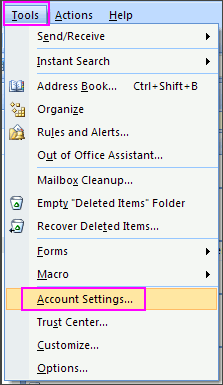
1. In Outlook 2007, from the Tools menu, select Account Settings...
Configure Outlook for NiceNIC POP Email Accounts - NiceNIC.NET

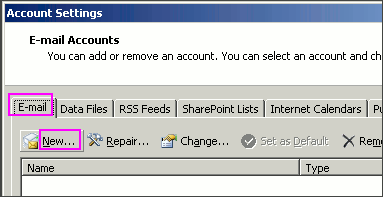
2. On the E-mail tab, click New...
Configure Outlook for NiceNIC POP Email Accounts - NiceNIC.NET

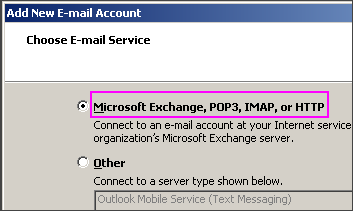
3. Select Microsoft Exchange, POP3, IMAP, or HTTP and click Next.
Configure Outlook for NiceNIC POP Email Accounts - NiceNIC.NET

4. Check Manually configure server settings or additional server types and click Next.

Configure Outlook for NiceNIC POP Email Accounts - NiceNIC.NET

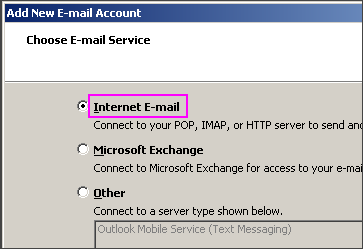
5. Select Internet E-mail and click Next.
Configure Outlook for NiceNIC POP Email Accounts - NiceNIC.NET

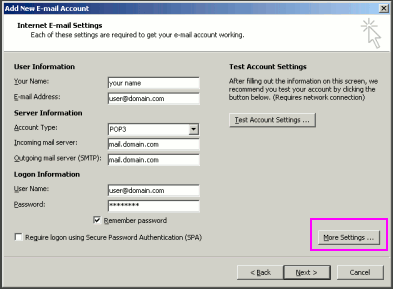
6. Enter the requested information:
    * Your Name: your name
    * Email Address: the email address the messages will be sent from
    * Account Type: POP3
    * Incoming Mail server: mail.domainname.xyz
    * Outgoing Mail server: mail.domainname.xyz
    * User Name: the full email address

    * Password: the password for the email address
7. Click More Settings...
Configure Outlook for NiceNIC POP Email Accounts - NiceNIC.NET

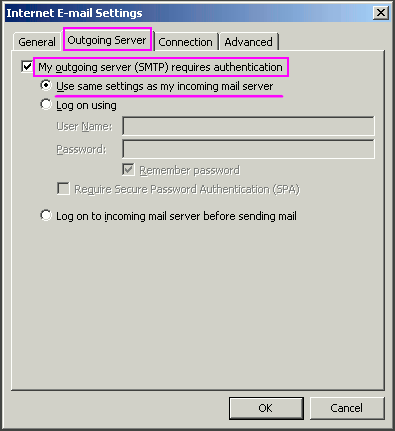
8. On the Outgoing Server tab, check My outgoing server (SMTP) requires authentication.
9. Select Use same settings as my incoming mail server and click OK.
Configure Outlook for NiceNIC POP Email Accounts - NiceNIC.NET

10. Click Test Account Settings to verify everything is configured correctly.
11. Click Next and then click Finish.  


Outlook

1. In Outlook, from the Tools menu, select Email Accounts...
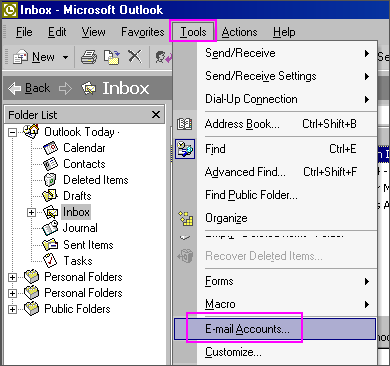
Configure Outlook for NiceNIC POP Email Accounts - NiceNIC.NET

2. Select Add a new e-mail account and then click Next.
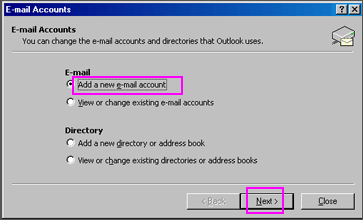
Configure Outlook for NiceNIC POP Email Accounts - NiceNIC.NET

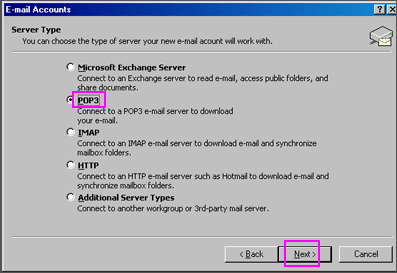
3. Select POP3 and then click Next.
Configure Outlook for NiceNIC POP Email Accounts - NiceNIC.NET

4. Enter your email information:
    * Your Name: your name
    * Email Address: the email address the messages will be sent from
    * Incoming Mail server (POP3): mail.domainname.xyz
    * Outgoing Mail server (SMTP): mail.domainname.xyz
    * User Name: the email address used to log into the webmail interface
    * Password: the password for the email address

5. Click on More Settings... and select the Outgoing Server Tab.
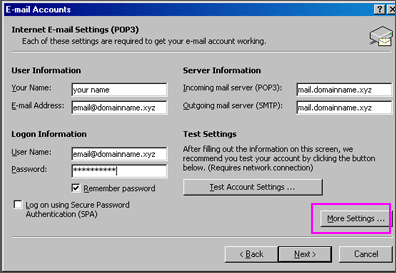
Configure Outlook for NiceNIC POP Email Accounts - NiceNIC.NET

6. Check My outgoing server (SMTP) requires authentication.

7. Select Use same settings as my incoming mail server.
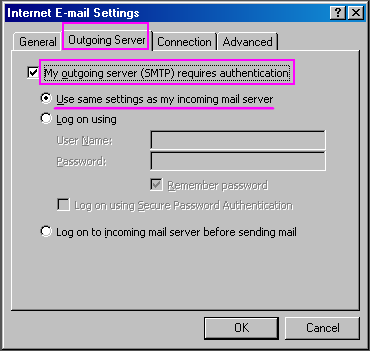
Configure Outlook for NiceNIC POP Email Accounts - NiceNIC.NET

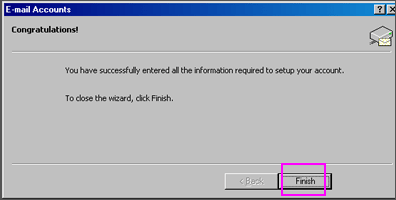
8. Click OK. Click Next. Click Finish.
Configure Outlook for NiceNIC POP Email Accounts - NiceNIC.NET
 

Outlook Express


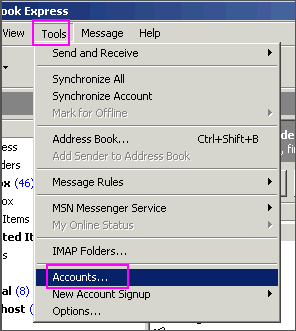
1. In Outlook Express, from the Tools menu, select Accounts…
Configure Outlook for NiceNIC POP Email Accounts - NiceNIC.NET

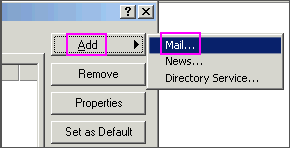
2. A box will appear. Click Add and select Mail...
Configure Outlook for NiceNIC POP Email Accounts - NiceNIC.NET

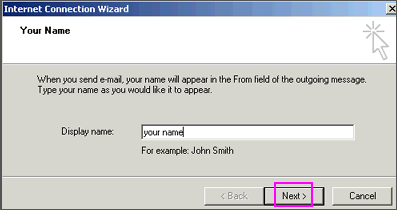
3. Enter your name as you want it to appear on your emails and click Next.
Configure Outlook for NiceNIC POP Email Accounts - NiceNIC.NET

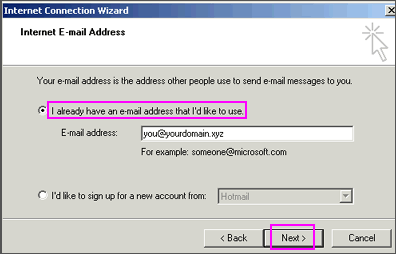
4. Put in your email address, which consists of a user you set up in webmail and @yourdomain.xyz, and then click Next.
Configure Outlook for NiceNIC POP Email Accounts - NiceNIC.NET

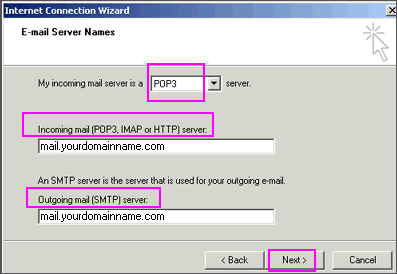
5. Set the server type as POP3.
6. For incoming and outgoing mail servers, enter mail.yourdomain.xyz (where yourdomain.xyz is your domain name and extension such as .com).
7. Click on Next.
Configure Outlook for NiceNIC POP Email Accounts - NiceNIC.NET

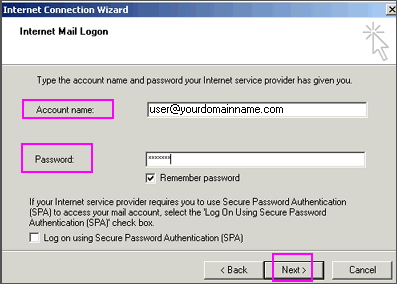
8. Enter your email address for the Account Name. Enter the Password you set for this account.

    Note: Do NOT check the box “Log on using Secure Password Authentication”.
Configure Outlook for NiceNIC POP Email Accounts - NiceNIC.NET

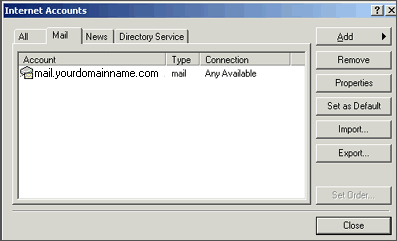
9. Click Next and then click Finish. After you click Finish, you should see the following window. If not, go to the Tools menu, and click on Accounts. After clicking Accounts the window will appear. In this window, click on your domain until it is highlighted, then click on Properties.
Configure Outlook for NiceNIC POP Email Accounts - NiceNIC.NET

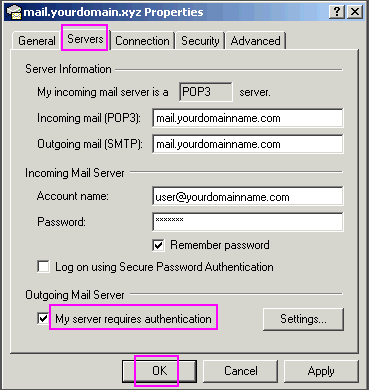
10. When the next screen appears, click on the Servers tab. Under Outgoing Mail Server, check the box next to My server requires authentication. Click OK. 
      Note: You MUST do this step so you can send mail from your domain.
Configure Outlook for NiceNIC POP Email Accounts - NiceNIC.NET

11. Now, you’re ready to send and receive mail. To set up multiple accounts, follow these steps again
- See more at: http://nicenic.net/news/messview.php?ID=13102

Configure Outlook for NiceNIC POP Email Accounts - NiceNIC.NET

The following article explains how to setup your iPhone to download email from your NiceNIC.NET account via POP.


Outlook 2007

1. In Outlook 2007, from the Tools menu, select Account Settings...
Configure Outlook for NiceNIC POP Email Accounts - NiceNIC.NET

2. On the E-mail tab, click New...
Configure Outlook for NiceNIC POP Email Accounts - NiceNIC.NET

3. Select Microsoft Exchange, POP3, IMAP, or HTTP and click Next.
Configure Outlook for NiceNIC POP Email Accounts - NiceNIC.NET

4. Check Manually configure server settings or additional server types and click Next.
Configure Outlook for NiceNIC POP Email Accounts - NiceNIC.NET

5. Select Internet E-mail and click Next.
Configure Outlook for NiceNIC POP Email Accounts - NiceNIC.NET

6. Enter the requested information:
    * Your Name: your name
    * Email Address: the email address the messages will be sent from
    * Account Type: POP3
    * Incoming Mail server: mail.domainname.xyz
    * Outgoing Mail server: mail.domainname.xyz
    * User Name: the full email address

    * Password: the password for the email address
7. Click More Settings...
Configure Outlook for NiceNIC POP Email Accounts - NiceNIC.NET

8. On the Outgoing Server tab, check My outgoing server (SMTP) requires authentication.
9. Select Use same settings as my incoming mail server and click OK.
Configure Outlook for NiceNIC POP Email Accounts - NiceNIC.NET

10. Click Test Account Settings to verify everything is configured correctly.
11. Click Next and then click Finish.  


Outlook

1. In Outlook, from the Tools menu, select Email Accounts...
Configure Outlook for NiceNIC POP Email Accounts - NiceNIC.NET

2. Select Add a new e-mail account and then click Next.
Configure Outlook for NiceNIC POP Email Accounts - NiceNIC.NET

3. Select POP3 and then click Next.
Configure Outlook for NiceNIC POP Email Accounts - NiceNIC.NET

4. Enter your email information:
    * Your Name: your name
    * Email Address: the email address the messages will be sent from
    * Incoming Mail server (POP3): mail.domainname.xyz
    * Outgoing Mail server (SMTP): mail.domainname.xyz
    * User Name: the email address used to log into the webmail interface
    * Password: the password for the email address

5. Click on More Settings... and select the Outgoing Server Tab.
Configure Outlook for NiceNIC POP Email Accounts - NiceNIC.NET

6. Check My outgoing server (SMTP) requires authentication.

7. Select Use same settings as my incoming mail server.
Configure Outlook for NiceNIC POP Email Accounts - NiceNIC.NET

8. Click OK. Click Next. Click Finish.
Configure Outlook for NiceNIC POP Email Accounts - NiceNIC.NET
 

Outlook Express


1. In Outlook Express, from the Tools menu, select Accounts…
Configure Outlook for NiceNIC POP Email Accounts - NiceNIC.NET

2. A box will appear. Click Add and select Mail...
Configure Outlook for NiceNIC POP Email Accounts - NiceNIC.NET

3. Enter your name as you want it to appear on your emails and click Next.
Configure Outlook for NiceNIC POP Email Accounts - NiceNIC.NET

4. Put in your email address, which consists of a user you set up in webmail and @yourdomain.xyz, and then click Next.
Configure Outlook for NiceNIC POP Email Accounts - NiceNIC.NET

5. Set the server type as POP3.
6. For incoming and outgoing mail servers, enter mail.yourdomain.xyz (where yourdomain.xyz is your domain name and extension such as .com).
7. Click on Next.

Configure Outlook for NiceNIC POP Email Accounts - NiceNIC.NET

8. Enter your email address for the Account Name. Enter the Password you set for this account.

    Note: Do NOT check the box “Log on using Secure Password Authentication”.
Configure Outlook for NiceNIC POP Email Accounts - NiceNIC.NET

9. Click Next and then click Finish. After you click Finish, you should see the following window. If not, go to the Tools menu, and click on Accounts. After clicking Accounts the window will appear. In this window, click on your domain until it is highlighted, then click on Properties.
Configure Outlook for NiceNIC POP Email Accounts - NiceNIC.NET

10. When the next screen appears, click on the Servers tab. Under Outgoing Mail Server, check the box next to My server requires authentication. Click OK. 
      Note: You MUST do this step so you can send mail from your domain.
Configure Outlook for NiceNIC POP Email Accounts - NiceNIC.NET

11. Now, you’re ready to send and receive mail. To set up multiple accounts, follow these steps again
- See more at: http://nicenic.net/news/messview.php?ID=13102
Configure iPhone for NiceNIC POP Email Accounts - NiceNIC.NET

The following article explains how to setup your iPhone to download email from your NiceNIC.NET account via POP.


iPhone software version 2.x and greater
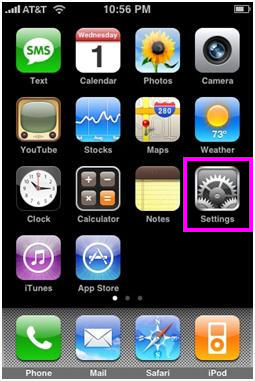
1. From the Dashboard, click Settings.
Configure iPhone for NiceNIC POP Email Accounts - NiceNIC.NET

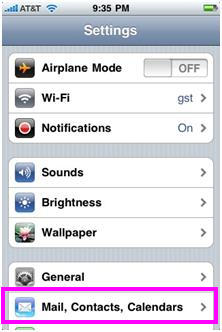
2. Under Settings, select Mail, Contacts, Calendars.
Configure iPhone for NiceNIC POP Email Accounts - NiceNIC.NET

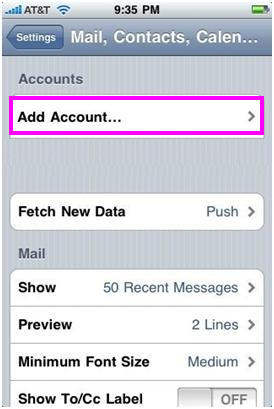
3. Select Add Account…
Configure iPhone for NiceNIC POP Email Accounts - NiceNIC.NET

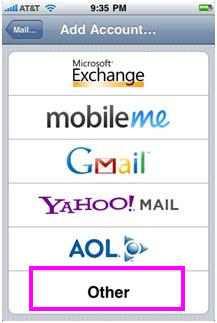
4. Select Other as the type of account.
Configure iPhone for NiceNIC POP Email Accounts - NiceNIC.NET

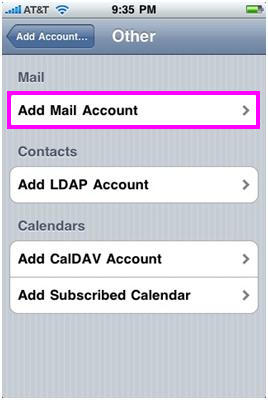
5. Click Add Mail Account.
Configure iPhone for NiceNIC POP Email Accounts - NiceNIC.NET

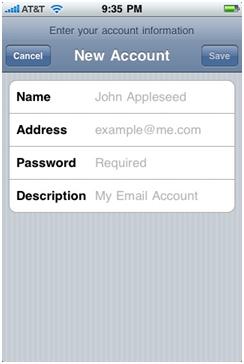
6. Enter the requested information:
    Name: the name of the mail user
    Address: the email address of the mail user
    Password: enter the users password (incoming mail server and external mail server)
    Description: a description of the mail user
Configure iPhone for NiceNIC POP Email Accounts - NiceNIC.NET

7. Click Save.

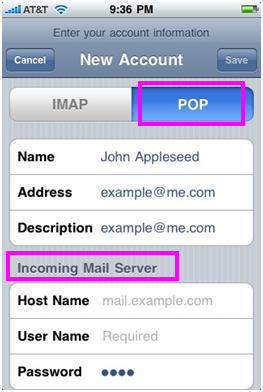
8. Click POP and enter the Incoming Mail Server information:
    Host Name: enter the mail server address
    User Name: enter the full email address
    Password: enter the users password
Configure iPhone for NiceNIC POP Email Accounts - NiceNIC.NET

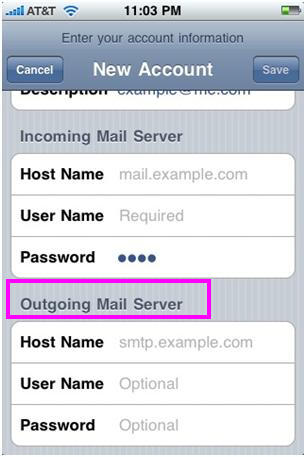
9. Scroll down and enter the Outgoing Mail Server information:
    Host Name: enter the mail server address
    User Name: enter the full email address
    Password: enter the users password
Configure iPhone for NiceNIC POP Email Accounts - NiceNIC.NET

10. Click Save.

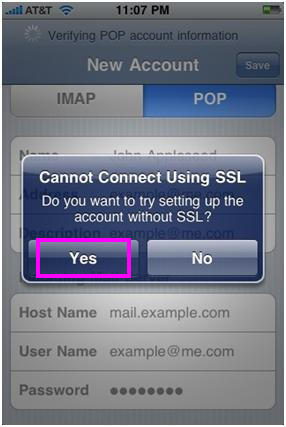
11. If you see a message that says “Cannot Connect Using SSL”, click Yes when asked to setup the account without SSL. The account should setup and verify.
Configure iPhone for NiceNIC POP Email Accounts - NiceNIC.NET

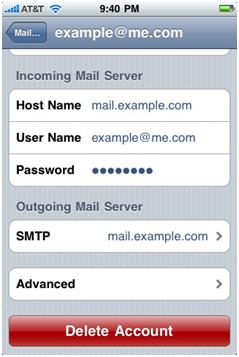
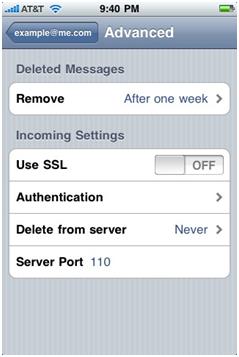
12. Go to the settings for the account. The Advanced settings for the account will be displayed and do not need to be changed unless there are issues or you wish to change the defaults (how long messages stay on server, how often to delete messages in Deleted Items, etc).
Configure iPhone for NiceNIC POP Email Accounts - NiceNIC.NET         Configure iPhone for NiceNIC POP Email Accounts - NiceNIC.NET

- See more at: http://nicenic.net/news/messview.php?ID=13100#sthash.JI7RGm2W.dpuf